If you have solar panels, an Emporia EV charger, and Smart Saver enabled, you may have run into a frustrating pattern: the charger keeps running on schedule overnight, but solar charging sessions never seem to happen. You did everything right. You installed the Vue monitor. You enrolled your charger in Excess Solar. You set up a Smart Saver schedule to charge during off-peak hours. And still, no solar charging.
There is a reason for that. With the release of app version 4.10.0, there is a fix.
Why Solar Charging Was Not Working
Excess Solar activates your charger when solar production exceeds your home’s consumption. Smart Saver schedules your charger to run during off-peak hours, typically overnight.
The conflict: Excess Solar only activates when the charger is off. Smart Saver keeps the charger on. As a result, customers who enabled both features often ended up with zero solar charging sessions, not because the features were broken, but because they were competing with each other.
Introducing Solar Window
Solar Window is a new feature in app version 4.10.0 that resolves this conflict.
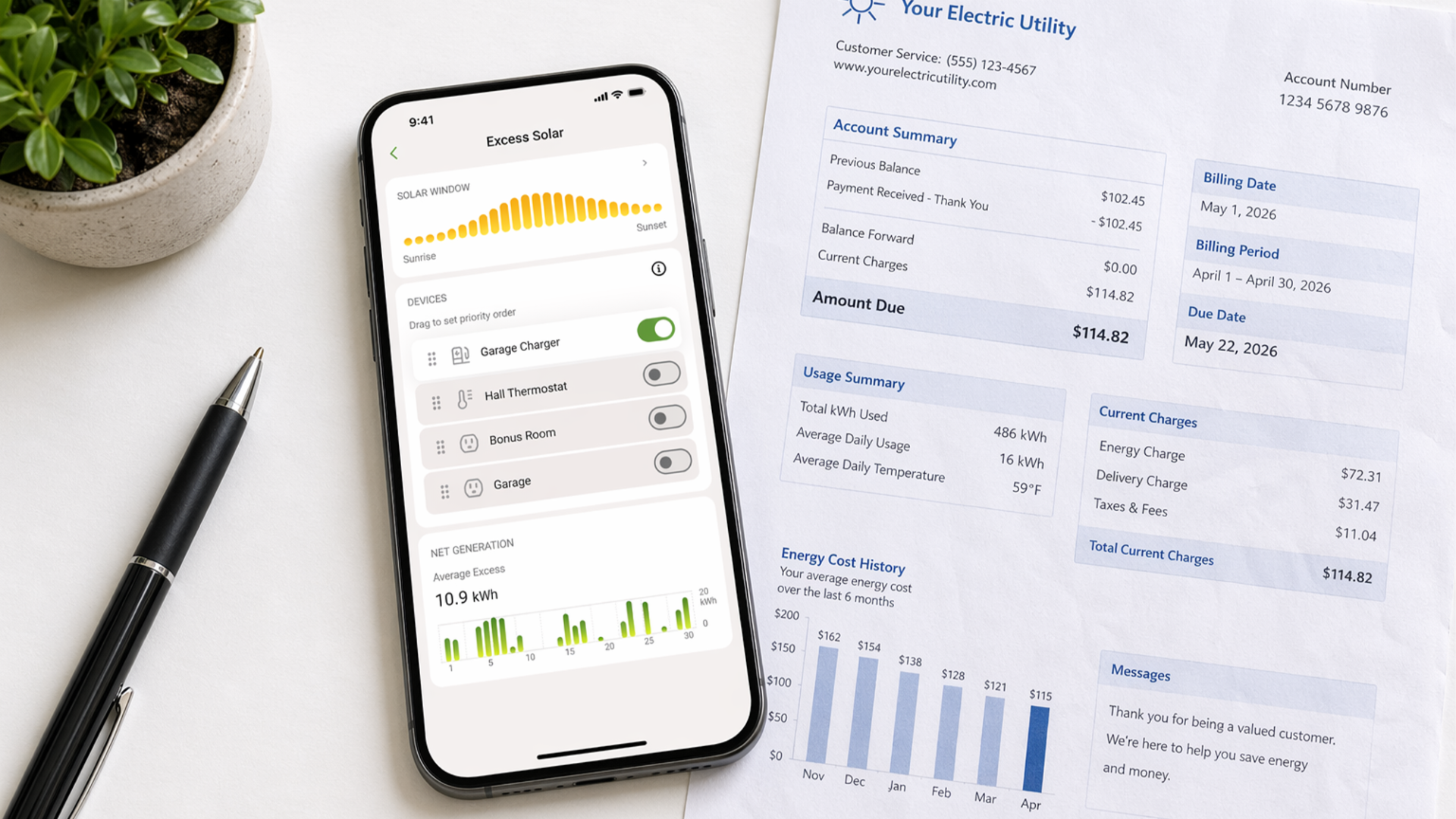
When enabled, it defines a period of time during which your charger will only run if solar is available. During the Solar Window, the charger stays off until your Vue monitor detects enough excess solar to start a session. When solar is available, charging begins. When it is not, the charger waits. Solar Window takes priority over Smart Saver and any other schedule you have set. Outside the window, your normal schedule resumes as usual.
How the Window Works
The default Solar Window is sunrise to sunset, calculated automatically from your Vue monitor’s location and time zone. It adjusts with the seasons so you never have to update it manually.
For customers who want more control, there is an expert mode: set an absolute window instead. For example, 8am to 3pm. This is useful if you prefer to export power to the grid during certain hours because the sellback rate is higher. You choose the window; the system respects it.
The Override
When you need to charge right now regardless of solar availability, the “Charge at full power” button lets you do that. Tap it to start charging from the grid immediately. The override resets automatically when you unplug your vehicle, so Solar Window behavior resumes for your next session.
Getting Started
Solar Window is available in Emporia app version 4.10.0. To use it, you need:
- A Vue Energy Monitor installed in your electrical panel
- Excess Solar enabled in the app with at least one enrolled device
- Your charger enrolled under that monitor
Open the Excess Solar screen in the Emporia app. The Solar Window configuration appears alongside your existing device enrollment list. The sunrise-to-sunset default is selected automatically; switch to expert mode if you want to set a specific window.
Your home energy, all in one place.
Monitor usage, control your devices, and track costs from anywhere in the free Emporia app.